If you’re planning a large-scale AWS deployment, you’re probably wondering how to orchestrate multiple applications and teams on AWS. How do you make sure that every team can access AWS without your accounts turning into sprawling, ungoverned chaos?
Many companies find that a multi-account structure can help meet the unique needs of each application team or business group. But with so many tools and services available in AWS, it can be tough to keep track of everything – especially when you need to enforce security and billing configurations across multiple accounts.
Major control tower features given below:
Landing Zone
AWS Control Tower automates the setup of a new landing zone using best-practices blueprints for identity, federated access, and account structure. Examples of blueprints that are automatically implemented in your landing zone include:
Create a multi-account environment using AWS Organizations
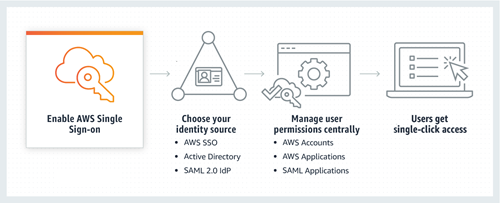
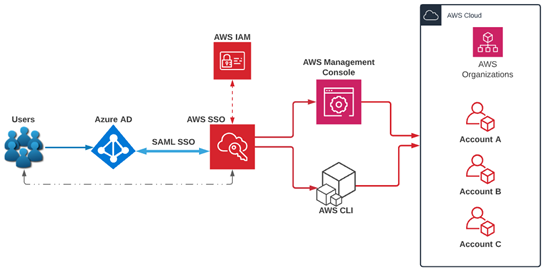
Provide identity management using AWS Single Sign-On (AWS SSO) default directory
Provide federated access to accounts using AWS SSO
Centralize logging from AWS CloudTrail, and AWS Config stored in Amazon Simple Storage Service (Amazon S3)
Enable cross-account security audits using AWS Identity and Access Management (IAM) and AWS SSO
The landing zone set up by AWS Control Tower is managed using a set of mandatory and strongly recommended guardrails, which you select through a self-service console to ensure that accounts and configurations comply with your policies.
Account Factory
The account factory automates provisioning of new accounts in your organization. As a configurable account template, it helps you standardize provisioning of new accounts with pre-approved account configurations. You can configure your account factory with pre-approved network configuration and Region selections, and enable self-service for your builders to configure and provision new accounts using AWS Service Catalog. Additionally, you can take advantage of Control Tower Solutions like Account Factory for Terraform to automate the provisioning and customization of a Control Tower-managed account that meets your business and security policies, before delivering it to end users.
Preventive and Detective Guardrails
Guardrails are pre-packaged governance rules for security, operations, and compliance that you can select and apply enterprise-wide or to specific groups of accounts. A guardrail is expressed in plain English, and enforces a specific governance policy for your AWS environment that can be enabled within an AWS Organizations organizational unit (OU). Each guardrail has two dimensions: it can be either preventive or detective, and it can be either mandatory or optional. Preventive guardrails establish intent and prevent deployment of resources that don’t conform to your policies (for example, ‘Enable AWS CloudTrail in all accounts’). Detective guardrails (for example, ‘Detect whether public read access to Amazon S3 buckets is allowed’) continuously monitor deployed resources for nonconformance. AWS Control Tower automatically translates guardrails into granular AWS policies by:
Establishing a configuration baseline using AWS CloudFormation
Preventing configuration changes of the underlying implementation using service control policies (for preventive guardrails)
Continuously detecting configuration changes through AWS Config rules (for detective guardrails)
Updating guardrail status on the AWS Control Tower dashboard
Mandatory and Optional Guardrails
AWS Control Tower offers a curated set of guardrails based on AWS best practices and common customer policies for governance. You can automatically leverage mandatory guardrails as part of your landing zone setup. Some examples of mandatory guardrails include:
Disallow changes to AWS IAM roles set up by AWS Control Tower and AWS CloudFormation
Detect public read access setting for log archive
Disallow changes to bucket policy for AWS Control Tower created Amazon S3 buckets in log archive
Disallow cross-Region networking
You can also choose to enable optional guardrails at any time. All accounts provisioned under OUs where optional guardrails are enabled will automatically inherit those guardrails. Examples of optional guardrails include:
Detect whether public write access to Amazon S3 buckets is allowed
Detect whether MFA for the root user is enabled
Detect whether encryption is enabled for Amazon EBS volumes attached to Amazon EC2 instances
Dashboard
The AWS Control Tower dashboard gives you continuous visibility into your AWS environment. You can view the number of OUs and accounts provisioned and the number of guardrails enabled, and check the status of your OUs and accounts against those guardrails. You can also see a list of noncompliant resources with respect to enabled guardrails.
Solutions for AWS Control Tower in AWS Marketplace
AWS Marketplace now offers integrated third-party software solutions for AWS Control Tower. Built by independent software vendors, these solutions help solve infrastructure and operational use cases including security for a multi-account environment, centralized networking, operational intelligence, and Security and Information Event Management (SIEM).







 Mizan's Paradigm